
Practical chrome DevTools tips
Chrome DevTools is one of the most powerful tools in a web developer's arsenal. While most developers are familiar with the basics like inspecting elements and checking console logs, DevTools offers a wealth of advanced capabilities that can dramatically speed up debugging and development workflows.
This post is a curated collection of practical DevTools tips I use regularly in my day-to-day development. Rather than being an exhaustive reference, these are the techniques that consistently save me time: from debugging transient UI states and tracking down network issues, to profiling performance and manipulating the DOM.
Let's dive into some of the most useful chrome DevTools features you should know.
Breakpoints & pausing
Pause after a delay: Useful for debugging transient UI elements like tooltips or hover states that disappear when you right-click to inspect them.
// Pause the page after 3 seconds
setTimeout(() => debugger, 3000)
This gives you time to hover over an element, trigger a tooltip, or set up any UI state before the debugger pauses.
Network debugging
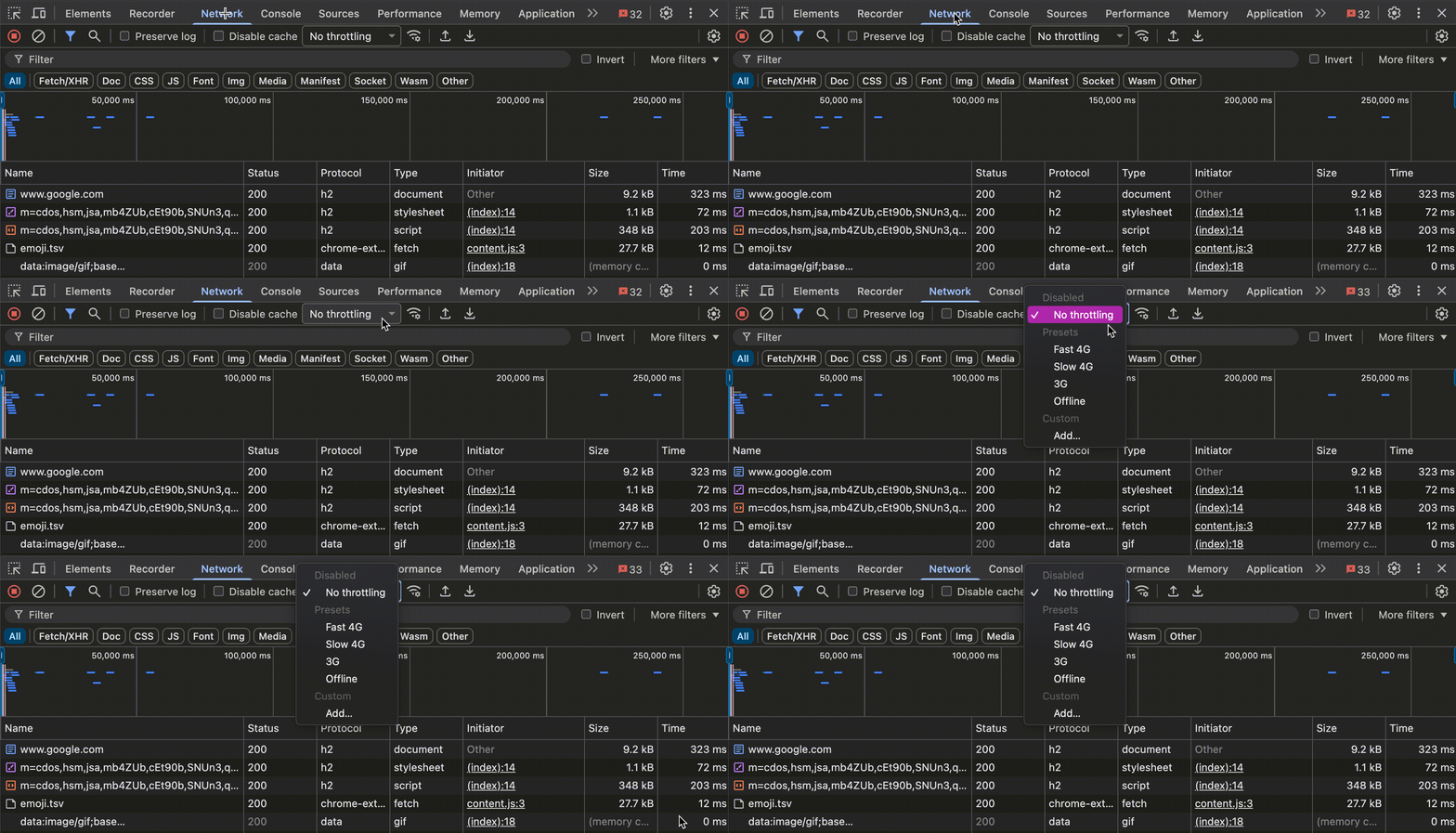
Simulate offline and throttle bandwidth: Reproduce slow connections or offline scenarios to test your app's behavior.
Networkpanel →throttledropdown → selectSlow 4G,Fast 4G,Offlineor create a custom profile
Screenshots & capture
Full page screenshot:
- Command Menu (Cmd+Shift+P) →
Capture full size screenshot
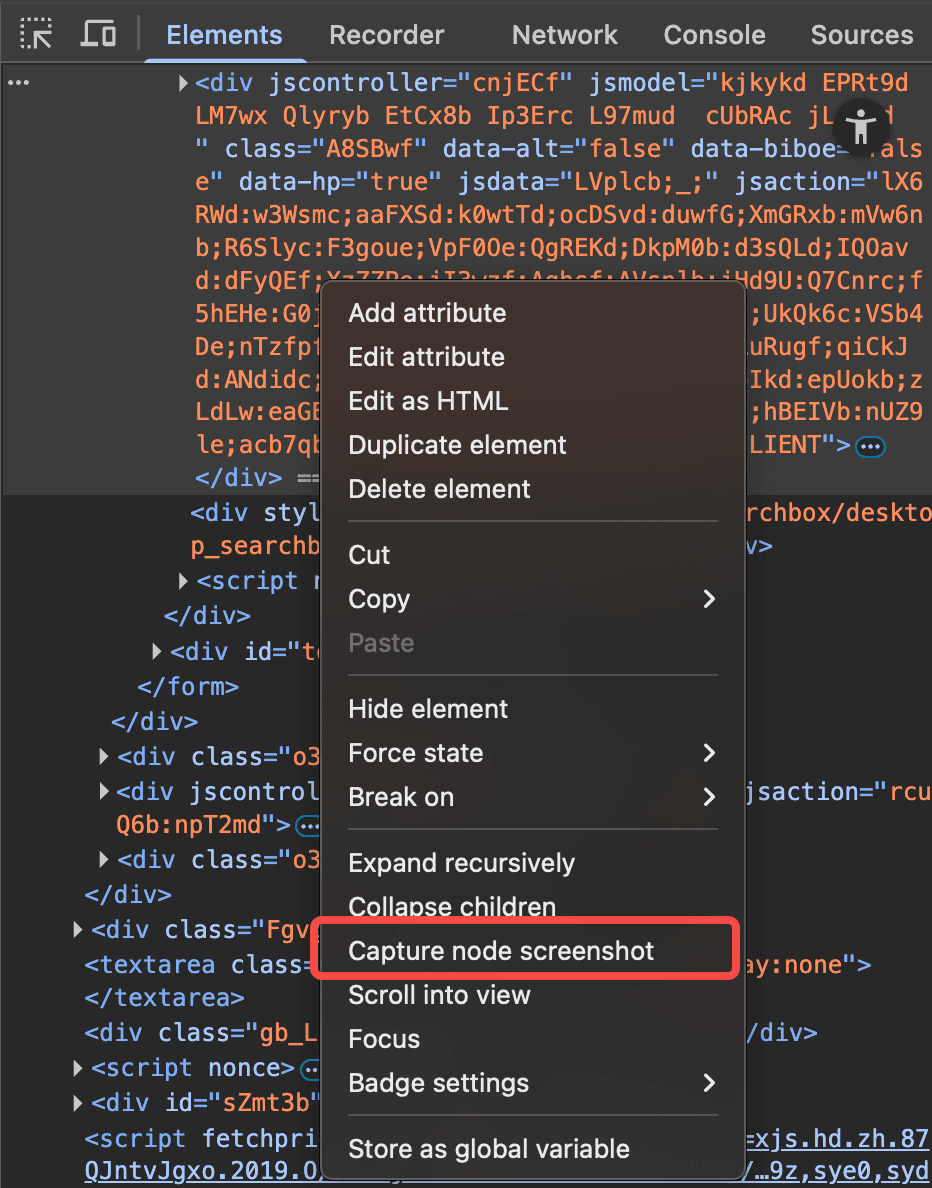
Element (node) screenshot:
Elementspanel → right-click a node →Capture node screenshot
Elements panel tips
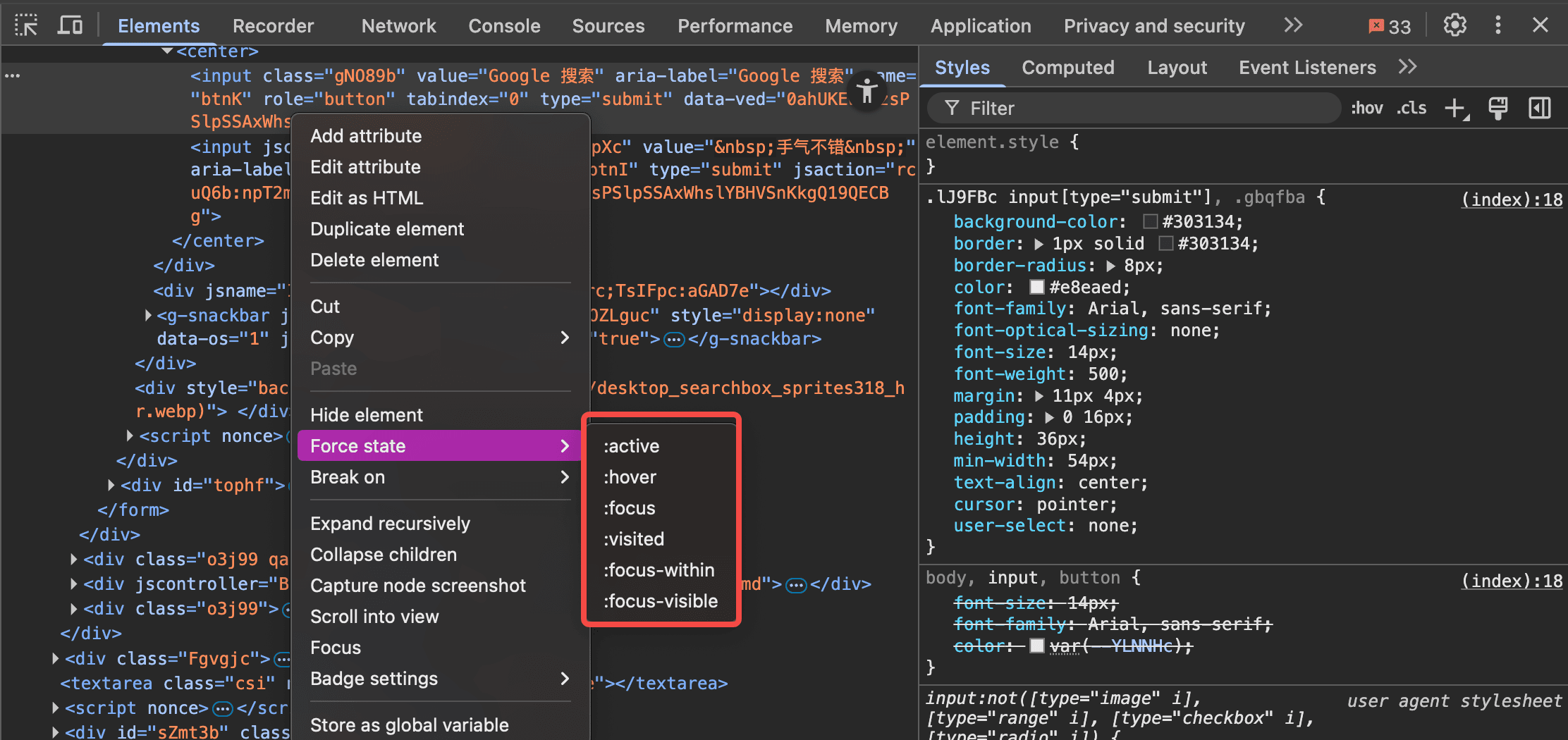
Force pseudo states:
Elementspanel → select a node → right-click →Force state→:hover,:focus,:active, etc., to style/test without user interaction
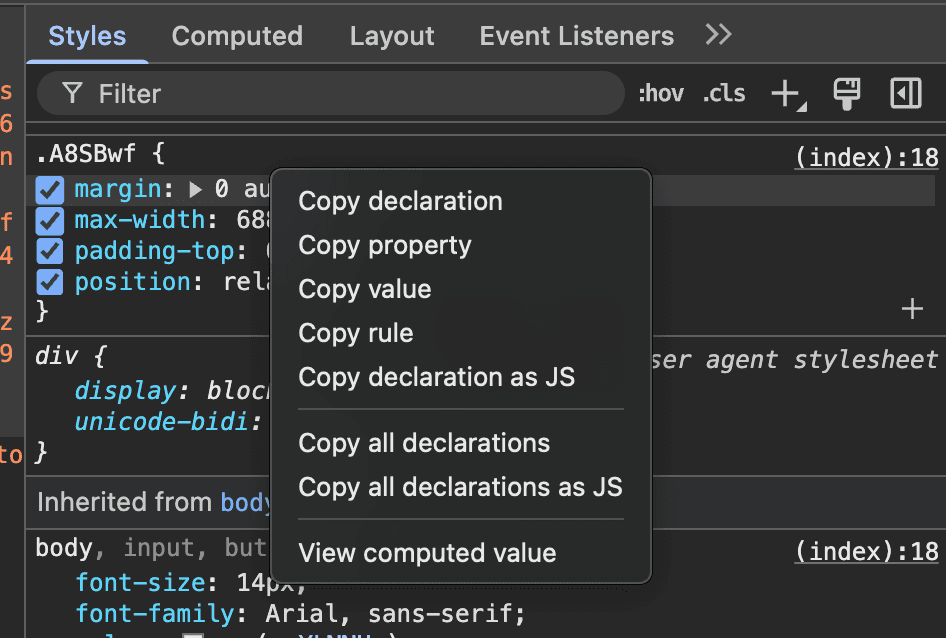
Quick copy CSS declarations:
- Right-click a declaration →
Copy declarationorCopy all declarations
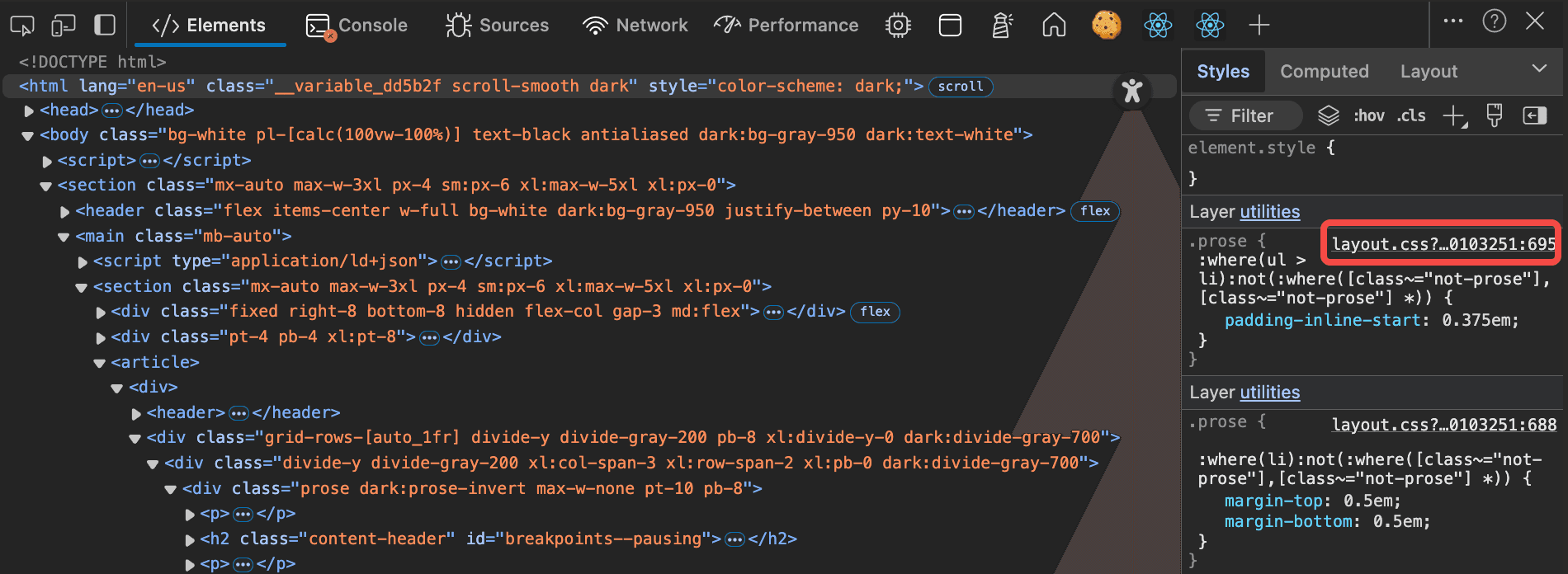
Jump to source declaration:
- In
Stylespanel, click the filename/line link to open the stylesheet at the exact rule
Sources panel tips
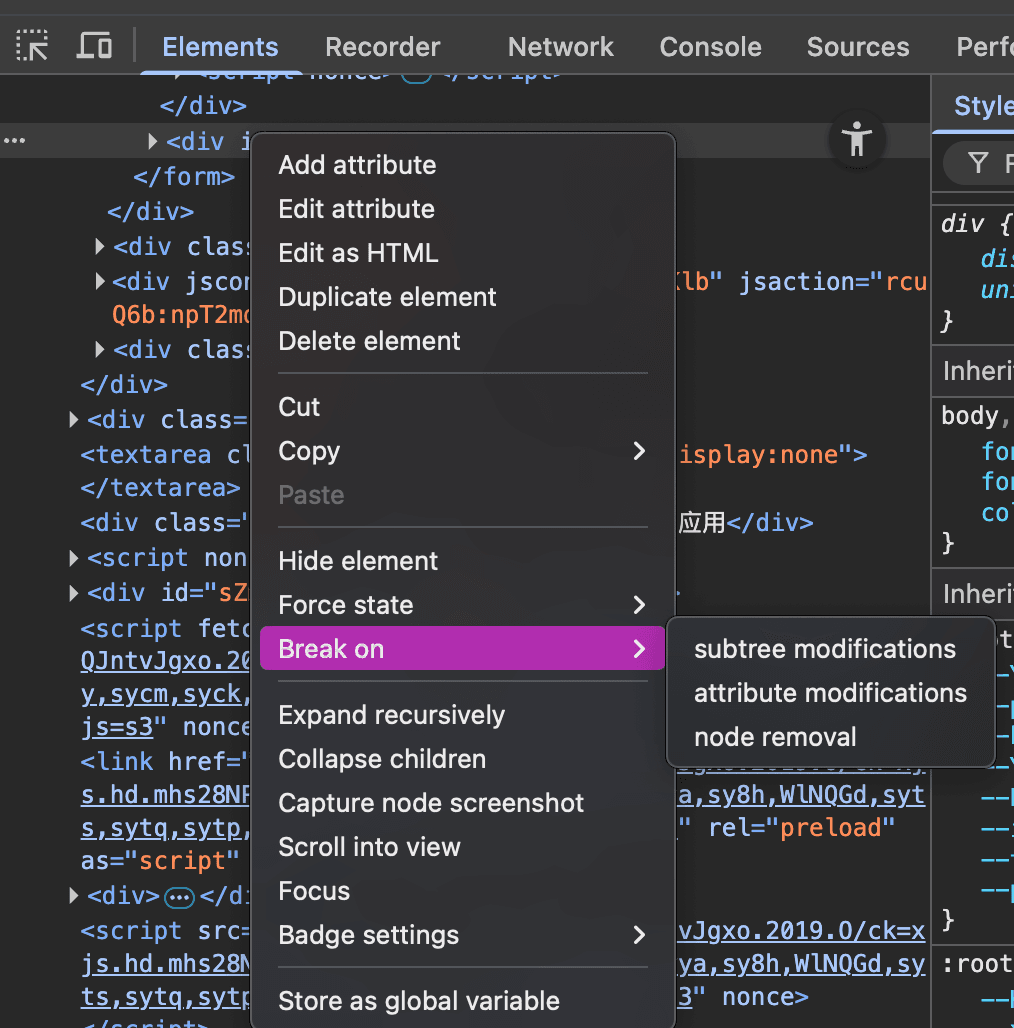
DOM breakpoints: Catch unexpected DOM mutations.
Elementspanel → right-click a node →Break on→- Subtree modifications: Pause when child nodes or content changes
- Attribute modifications: Pause when attributes (like
className) change - Node removal: Pause when the node is removed from the DOM
Network panel
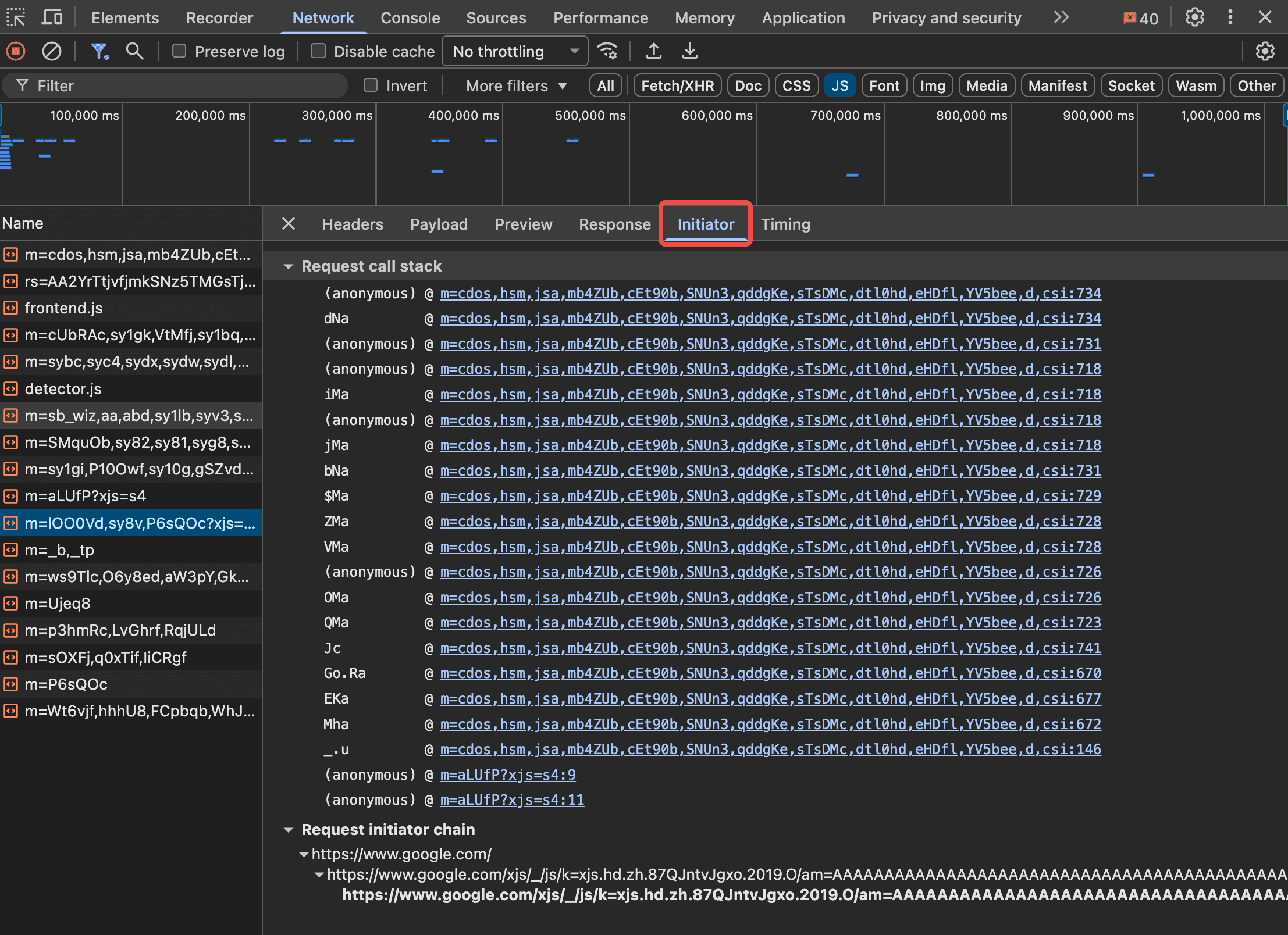
Locate request origin: See where a network request was triggered.
Networkpanel → select request → checkInitiatorfor the call stack → click to jump to source code
Disable cache while DevTools open:
Networkpanel → checkDisable cacheto avoid stale resources during debugging

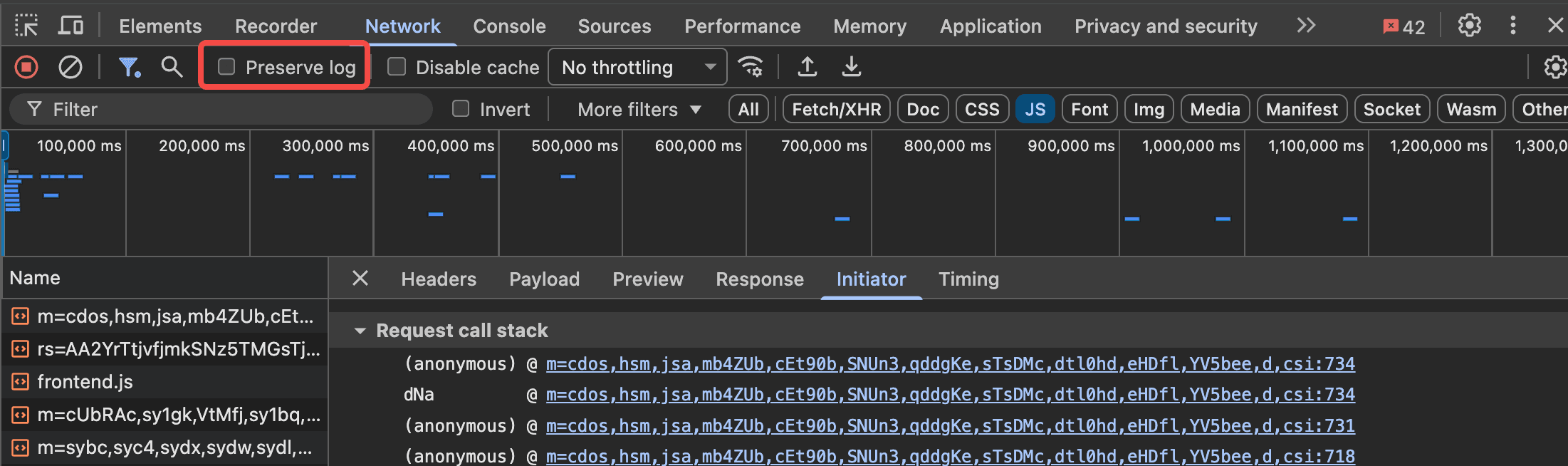
Preserve log: Keep Network and Console logs across page reloads.
Network/Consolepanel → checkPreserve log
Copy as fetch/cURL:
Networkpanel → right-click →Copy→Copy as fetchorCopy as cURLfor reproducible requests- Useful for sharing requests or debugging API calls
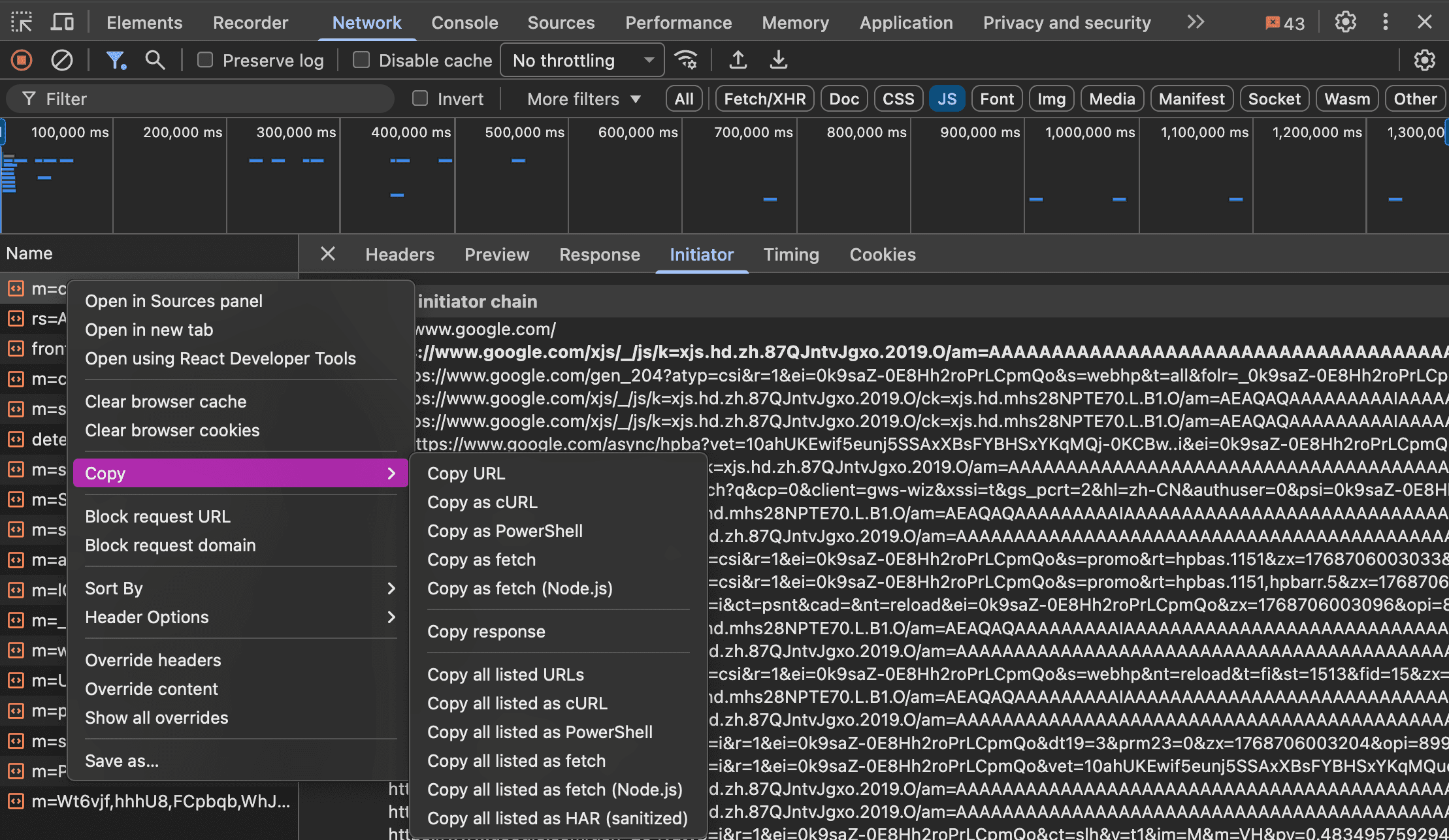
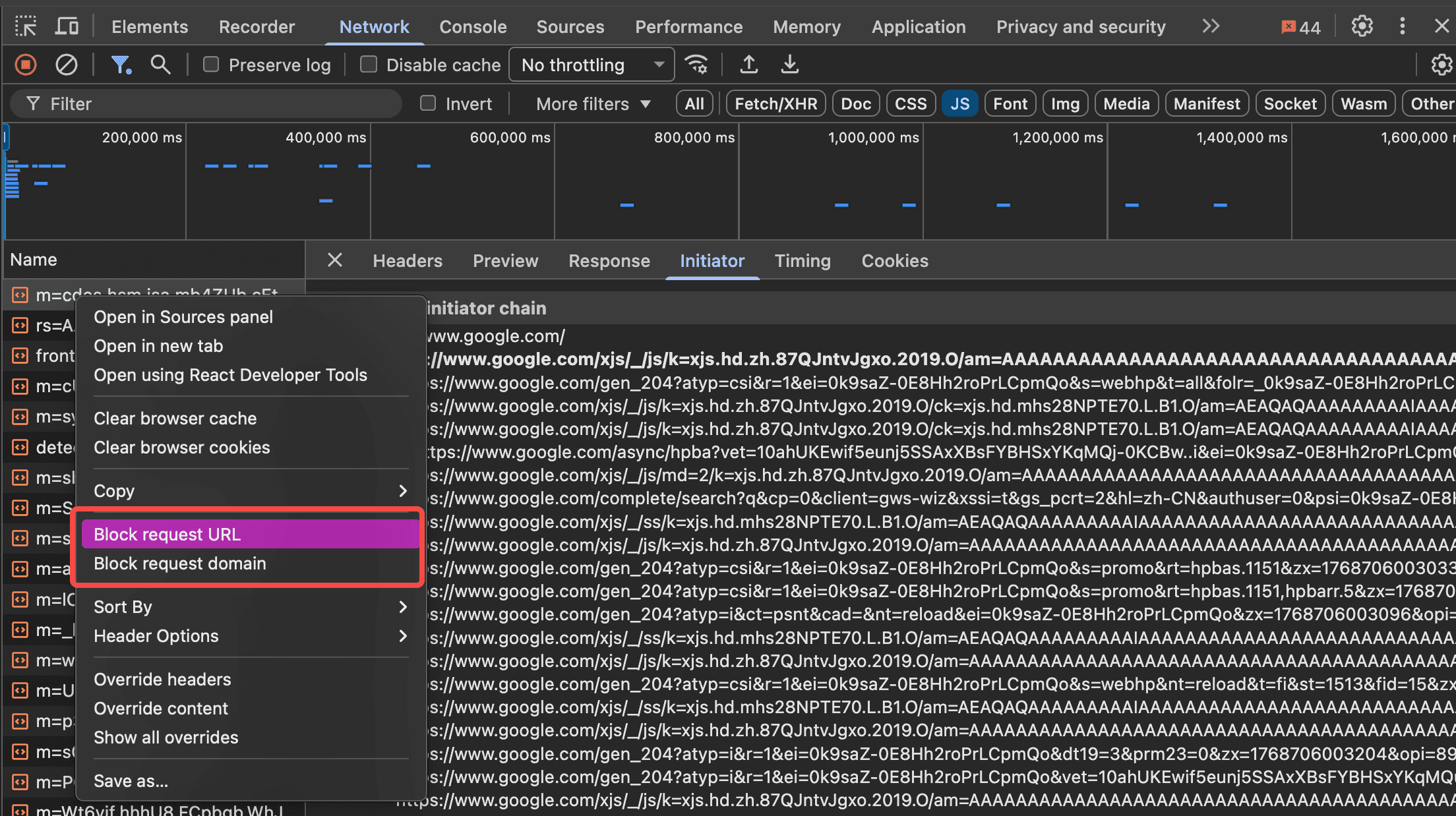
Block requests:
Networkpanel → right-click a request →Block request domainorBlock request URL- Add patterns (e.g.,
*.analytics*) to simulate third-party failures - Useful for testing how your app handles missing resources
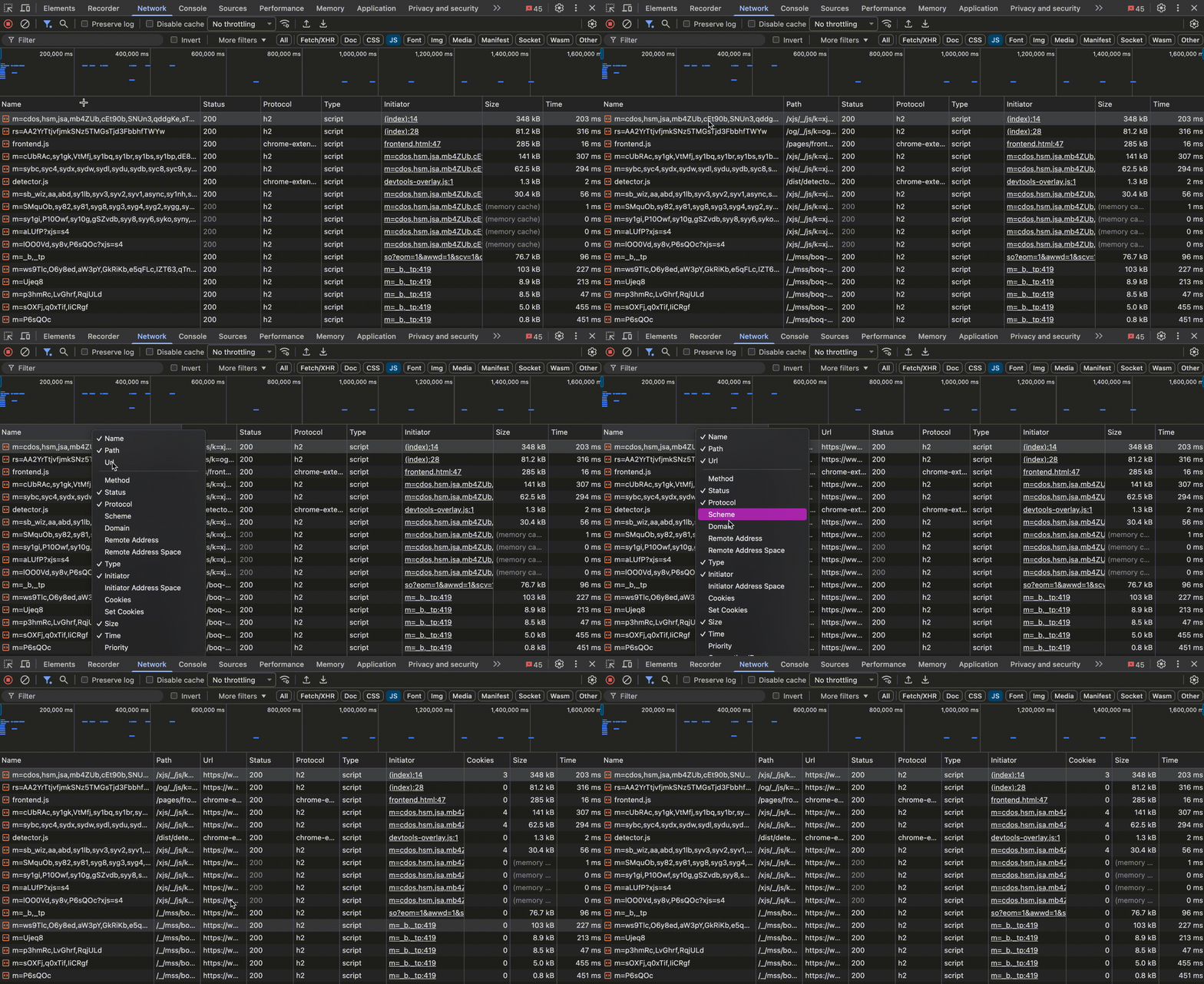
Customize columns:
Networkpanel → right-click column headers → check desired columns.
Network summary: View key metrics at the bottom of the panel.
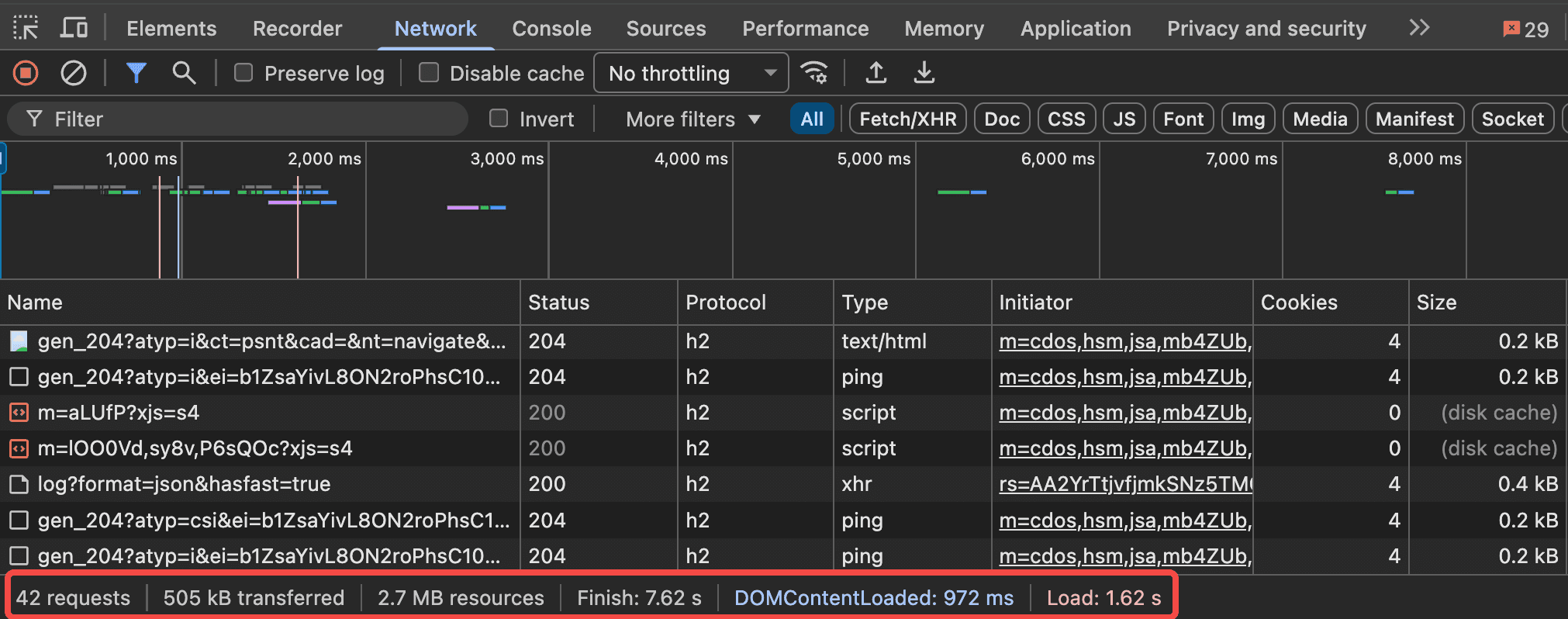
From left to right:
- Requests: Total number of requests (only counts requests after DevTools opened)
- Transferred: Size of compressed data sent over the network
- Resources: Total uncompressed size of all resources
- Finished event: Time when the last resource finished loading
- DOMContentLoaded event: Time when the DOMContentLoaded event fired
- Load event: Time when the load event fired
Rendering
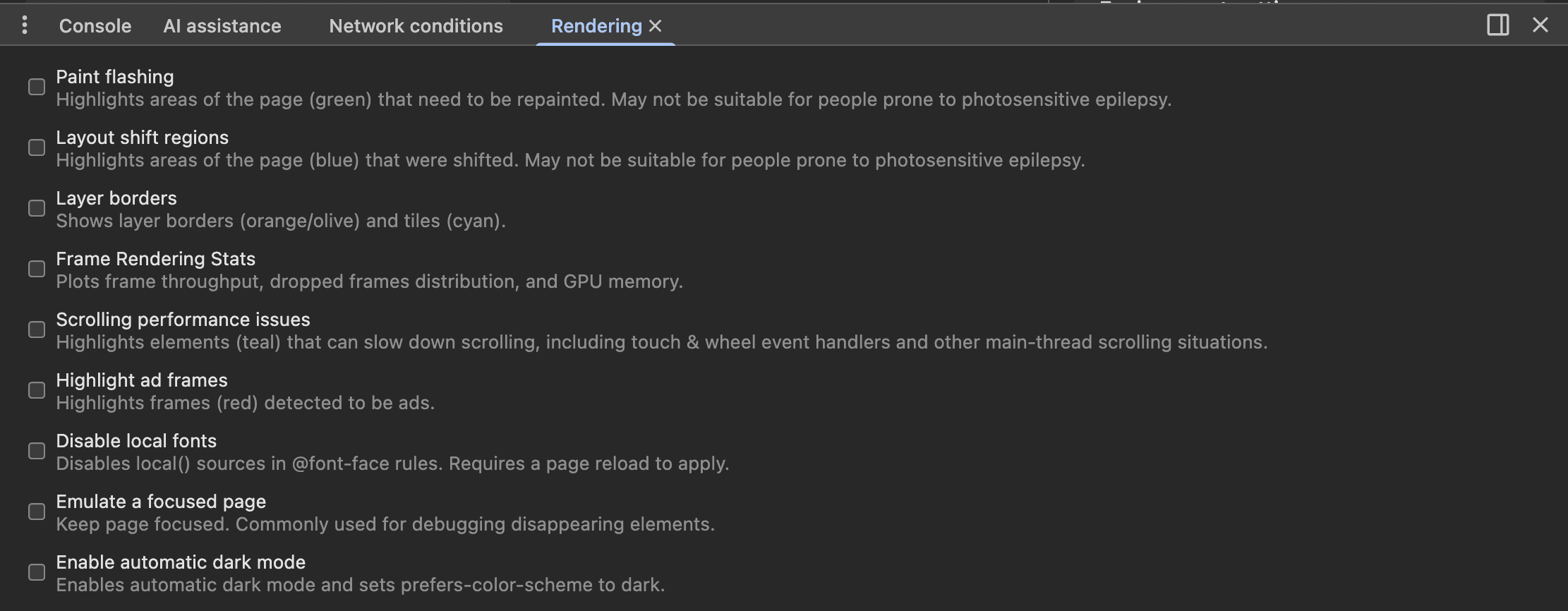
Rendering tools: Visualize performance issues.
- Command Menu (Cmd+Shift+P) →
Show Rendering→ enable:- Paint flashing: Green highlights show repainted areas
- Layout shift regions: Highlights unexpected shifts (CLS debugging)
- Frame Rendering Stats: Display FPS, GPU usage
Performance basics
Record a performance trace:
Performancepanel → Record while interacting → Stop; inspect Main thread activity, screenshots lane, and Web Vitals metrics
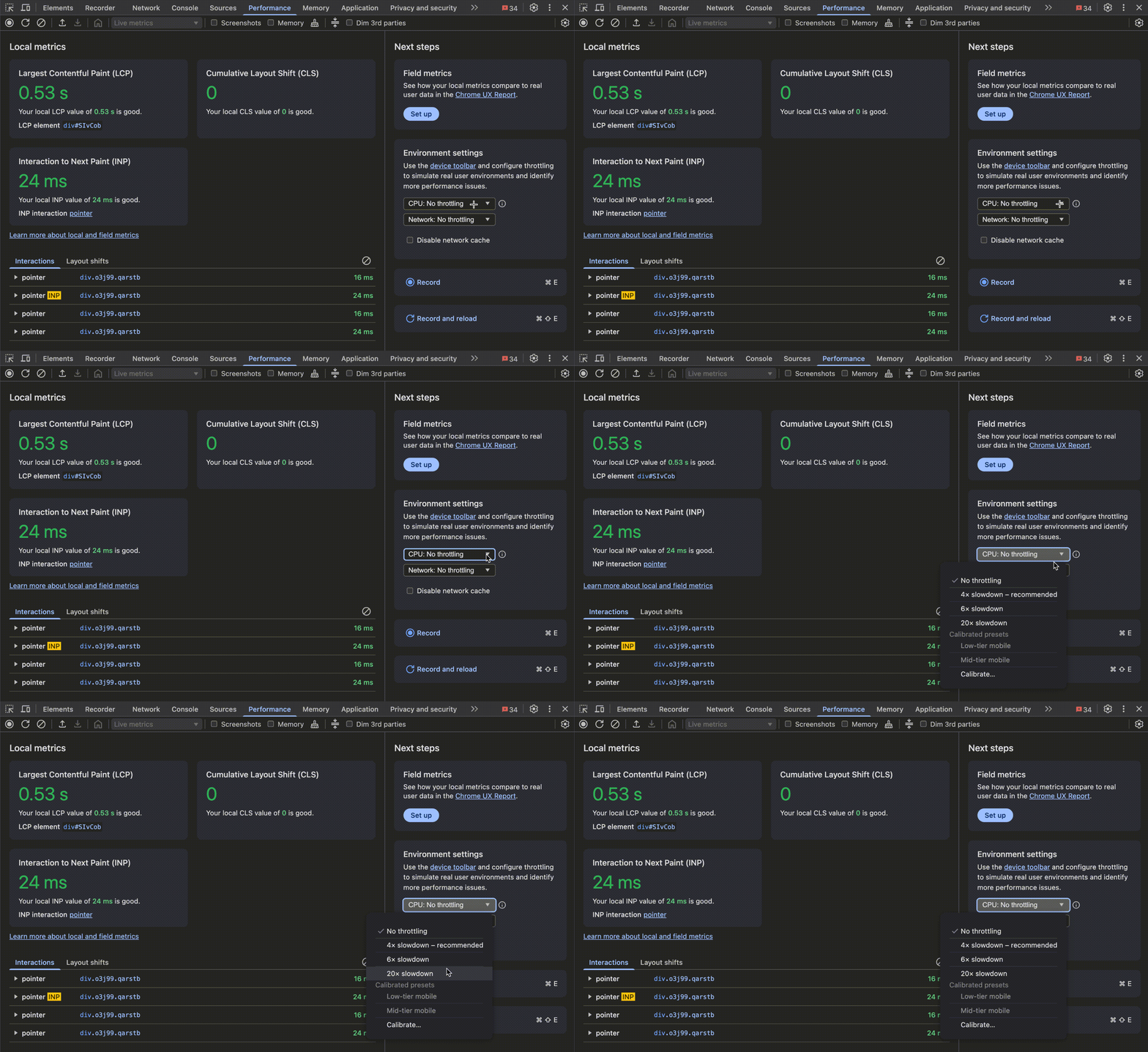
CPU throttling for realism:
Performancepanel → "CPU" dropdown → throttle (e.g., 4×) to surface timing issues on lower-end devices
Console utilities
DevTools Console provides powerful shortcuts when no library has claimed them:
$ / $$: Shortcuts for querySelector and querySelectorAll (returns a real array, not NodeList).
// Get all links
console.log($$('a').map((el) => el.href))
$0 to $4: References to the last 5 selected elements in the Elements panel.
$_: The result of the last evaluated Console expression.
copy(obj): Copy any object to clipboard (even formats JSON for you).