
Progressive web apps and service workers
Introduction
Progressive Web Apps (PWA) represent a paradigm shift in web development: combining the reach and accessibility of the web with the user experience of native applications. A properly implemented PWA can be installed to the home screen, work reliably on poor network conditions, load instantly, and provide app-like interactions.
This guide covers what you need to build production-ready PWAs: from service worker fundamentals to advanced caching strategies, lifecycle management, and real-world implementation tips. By the end, you'll have a solid understanding of how to leverage service workers to create fast, reliable, and engaging web applications.
Table of contents
- What is a PWA
- Core PWA technologies
- Service worker fundamentals
- Service worker lifecycle
- Important non-lifecycle service worker events
- Caching strategies
- Connect the dots: step by step demo example
- Common pitfalls
- Real world PWA
What is a PWA
A Progressive Web App (PWA) is not a specific technology or framework. It's a set of best practices and modern web capabilities that, when combined, deliver an app-like experience.
The core principle: Progressive enhancement. Your app works for every user regardless of browser choice, but progressively enhances the experience as capabilities are available.
Key characteristics
- Progressive: Works for every user, regardless of browser
- Connectivity independent: Works offline or on low-quality networks
- Safe: Served via HTTPS to prevent snooping and tampering
- Re-engageable: Push notifications keep users engaged
- Installable: Add to home screen without app store friction
Real-world benefits
- Instant loading from cache
- Works offline or on flaky networks
- No app store downloads or updates
- Smooth, app-like experience
Core PWA technologies
A complete PWA implementation requires three key components:
1. Web app manifest
A JSON file that defines how your app appears when installed, including icons, name, theme colors, and launch behavior. It enables the Add to Home Screen prompt and controls the app's appearance when launched.
{
  "name": "My Progressive Web App",
  "short_name": "MyApp",
  "start_url": "/",
  "display": "standalone",
  "background_color": "#ffffff",
  "theme_color": "#000000",
  "description": "A progressive web app example",
  "icons": [
    {
      "src": "/icon-192.png",
      "sizes": "192x192",
      "type": "image/png"
    },
    {
      "src": "/icon-512.png",
      "sizes": "512x512",
      "type": "image/png"
    }
  ]
}
Link it in your HTML:
<link rel="manifest" href="/manifest.json" />
Key manifest properties explained
name vs short_name:
name: Full name shown on install promptshort_name: Name shown under icon on home screen (max 12 characters)
display modes:
standalone: Looks like native app (no browser UI)fullscreen: Full screen (for games, immersive apps)minimal-ui: Standalone with minimal navigation controlsbrowser: Opens in normal browser tab
start_url:
- URL loaded when app launches
- Add query parameter to track PWA launches in analytics
- Must be within scope
scope:
- Defines URL space of your app
- URLs outside scope open in browser
- Defaults to directory of manifest
theme_color:
- Customizes OS theme elements (status bar, toolbar)
- Should match your app's primary color
2. Service worker
A JavaScript worker that runs in the background, separate from your web page. It acts as a programmable network proxy, enabling:
- Offline functionality
- Background sync
- Push notifications
- Advanced caching strategies
More details about this in the next sections.
3. HTTPS requirement
Service workers require HTTPS in production (localhost and 127.0.0.1 are exempt for development). This is critical for security because service workers have powerful capabilities that could be exploited if served over an insecure connection. HTTPS ensures:
- Secure communication
- Protection against man-in-the-middle attacks
- Trustworthy push notifications
- Required for most modern web APIs
Service worker fundamentals
Service workers are built on the Web Worker API which is an independent thread separate from the JavaScript main thread. This means resource-intensive operations don't block the UI thread.
Key constraints of service workers
Understanding these constraints is critical for proper implementation:
1. Cannot access DOM directly:
- Service workers run in a worker context
- No
window,document, or DOM APIs - Communicate with pages via
postMessage
2. HTTPS only (production):
- Required for security. Service workers have powerful capabilities
localhostand127.0.0.1exempt for development- Some hosting services provide free HTTPS (Netlify, Vercel, GitHub Pages)
3. Scope-based control:
- Service worker scope is determined by its file location
- A worker at
/app/sw.jscan only control pages under/app/ - Place at root (
/sw.js) to control entire site - Can narrow scope via registration options, but cannot widen beyond file location
Register service worker
In your main HTML or app entry point:
<script>
  if ('serviceWorker' in navigator) {
    window.addEventListener('load', async () => {
      try {
        const registration = await navigator.serviceWorker.register('/serviceWorker.js', {
          scope: '/',
        })
        console.log('Service worker registered:', registration.scope)
      } catch (error) {
        console.error('Service worker registration failed:', error)
      }
    })
  }
</script>
Important notes:
- Register on
loadevent to avoid competing with initial page load - The
scopeoption defines which URLs the service worker controls - Registration returns a
ServiceWorkerRegistrationobject
Service worker lifecycle
Understanding the lifecycle is crucial for proper PWA implementation. The service worker goes through several stages:
- Register: When the page registers the service worker script
- Installing: When the browser is installing the service worker
- Installed (waiting): After installation, the new worker waits if an old version is still active. If you close all tabs controlled by the old worker or call
skipWaiting(), the new worker activates immediately. - Activating: When the new worker becomes active and takes control of pages. You can call
self.clients.claim()to immediately take control of all pages. Without it, pages must reload to be controlled by the new worker. - Activated: The service worker is now in control and will handle fetch events. It is ready to intercept network requests, manage caches, and perform background tasks.
- Redundant: If a new service worker is detected while an old one is active, the new one will be installed but will wait until the old one is no longer controlling any clients before it activates. This ensures a smooth transition without disrupting the user experience.
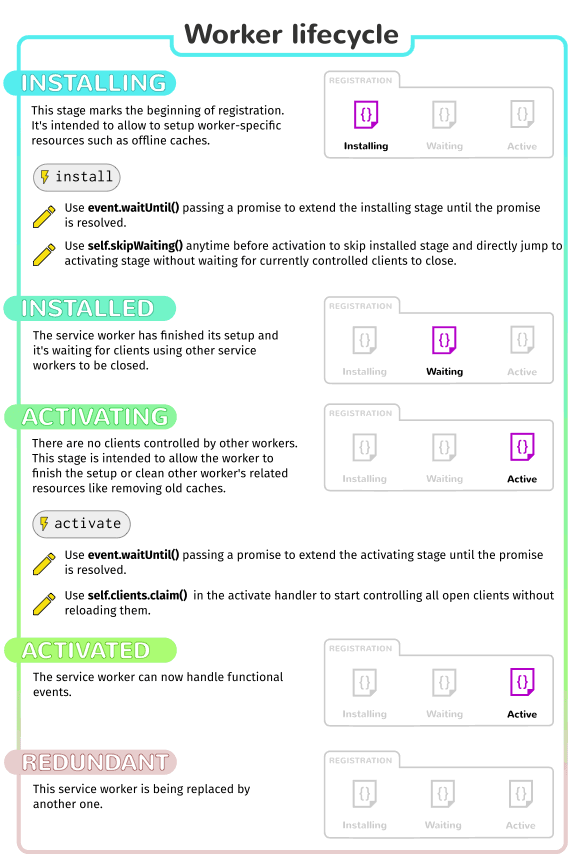 Source: delapuente/service-workers-101
Lifecycle stages
1. Installing
Triggered when a service worker is first registered or a new version is detected.
self.addEventListener('install', (event) => {
  event.waitUntil(
    // Open cache and pre-cache critical resources
    caches
      .open('app-v1')
      .then((cache) => {
        // Pre-cache critical resources
        return cache.addAll(['/', '/index.html', '/styles.css', '/app.js'])
      })
      .then(() => {
        // Skip waiting to activate new worker immediately
        self.skipWaiting()
      })
  )
})
Key points:
cachesAPI is commonly used to store assets during install. Refer to MDN Cache API for more detailsevent.waitUntil()extends the install event until promises resolve- Cache critical resources during install
skipWaiting()activates new worker immediately (use with caution)
2. Installed (waiting)
After successful installation, the new service worker waits if an old version is still active.
Why waiting?
- Ensures consistency: old pages controlled by old worker
- Prevents version conflicts
- New worker activates when all pages controlled by old worker close
Skip waiting:
// In service worker
self.skipWaiting()

// Or from page
registration.waiting.postMessage({ type: 'SKIP_WAITING' })
3. Activating
Triggered when service worker becomes active (either immediately or after old worker releases).
self.addEventListener('activate', (event) => {
  event.waitUntil(
    // Clean up old caches
    caches
      .keys()
      .then((cacheNames) => {
        return Promise.all(
          cacheNames.filter((name) => name !== 'app-v1').map((name) => caches.delete(name))
        )
      })
      .then(() => {
        // Take control of all pages immediately
        self.clients.claim()
      })
  )
})
Key points:
- Clean up old caches here
clients.claim()takes control of all pages immediately- Without
claim(), pages must reload to be controlled
4. Activated
Service worker is now in control and will handle fetch events.
Important non-lifecycle service worker events
fetch event
Fired for every network request from controlled pages. The heart of service worker functionality.
self.addEventListener('fetch', (event) => {
  const { request } = event

  event.respondWith(
    caches.match(request).then((cachedResponse) => {
      // Return cached response if found
      if (cachedResponse) {
        return cachedResponse
      }

      return fetch(request).then((networkResponse) => {
        // Cache successful responses
        if (networkResponse.status === 200) {
          const responseClone = networkResponse.clone()
          caches.open('app-v1').then((cache) => {
            cache.put(request, responseClone)
          })
        }
        return networkResponse
      })
    })
  )
})
Common use cases:
- Implement caching strategies
- Offline fallbacks
- Request manipulation
- Response transformation
push event
Fired when push notification received from server.
self.addEventListener('push', (event) => {
  const data = event.data?.json() ?? {}
  const title = data.title || 'New notification'
  const options = {
    body: data.body || 'You have a new message',
    icon: '/icon-192.png',
    badge: '/badge-72.png',
    data: data,
  }

  event.waitUntil(self.registration.showNotification(title, options))
})
Common use cases:
- Display push notifications
- Update cached data in background
- Badge count updates
message event
Fired when page sends message to service worker.
// In service worker
self.addEventListener('message', (event) => {
  if (event.data.type === 'SKIP_WAITING') {
    self.skipWaiting()
  }

  if (event.data.type === 'CLEAR_CACHE') {
    event.waitUntil(
      caches.keys().then((names) => {
        return Promise.all(names.map((name) => caches.delete(name)))
      })
    )
  }
})

// From page
navigator.serviceWorker.controller.postMessage({
  type: 'SKIP_WAITING',
})
Common use cases:
- Trigger service worker updates
- Clear caches programmatically
- Send configuration data
Caching strategies
Different resources require different caching approaches. Here are the main patterns:
1. Cache first (cache falling back to network)
Best for: Static assets that rarely change (CSS, JS, images, fonts)
self.addEventListener('fetch', (event) => {
  event.respondWith(
    caches.match(event.request).then((cachedResponse) => {
      return cachedResponse || fetch(event.request)
    })
  )
})
Flow:
- Check cache first
- Return cached response if found
- Fetch from network if cache miss
2. Network first (network falling back to cache)
Best for: API calls, frequently updated content
self.addEventListener('fetch', (event) => {
  event.respondWith(
    // Try network first
    fetch(event.request)
      .then((response) => {
        // Clone and cache the response
        const responseClone = response.clone()
        caches.open('app-v1').then((cache) => {
          cache.put(event.request, responseClone)
        })
        return response
      })
      .catch(() => {
        // Network failed, try cache
        return caches.match(event.request)
      })
  )
})
Flow:
- Try network first
- Cache successful response
- Fall back to cache if network fails
3. Stale-while-revalidate (SWR)
Best for: Content that can be slightly out of date (social media feeds, news)
self.addEventListener('fetch', (event) => {
  event.respondWith(
    caches.open('app-v1').then((cache) => {
      return cache.match(event.request).then((cachedResponse) => {
        const fetchPromise = fetch(event.request).then((networkResponse) => {
          cache.put(event.request, networkResponse.clone())
          return networkResponse
        })
        // Return cached immediately, update in background
        return cachedResponse || fetchPromise
      })
    })
  )
})
Flow:
- Return cached version immediately
- Fetch from network in background
- Update cache for next request
4. Network only
Best for: Real-time data, POST requests, analytics
self.addEventListener('fetch', (event) => {
  if (event.request.method === 'POST') {
    event.respondWith(fetch(event.request))
  }
})
5. Cache only
Best for: Pre-cached offline pages, rarely used
self.addEventListener('fetch', (event) => {
  event.respondWith(caches.match(event.request))
})
Choosing the right strategy
| Resource Type | Recommended Strategy | Why |
|---|---|---|
| App shell | Cache first | Critical, rarely changes |
| CSS/JS bundles | Cache first | Versioned, immutable |
| Images/fonts | Cache first | Large, rarely change |
| API data | Network first | Needs fresh data |
| User-generated | Stale-while-revalidate | Balance freshness and speed |
| Analytics | Network only | Real-time, not critical |
| Offline fallback | Cache only | Never needs update |
Connect the dots: step by step demo example
This demo brings together the core concepts covered above: registration, lifecycle, caching, and offline functionality.
File structure
Create this minimal setup in demos/pwa-service-worker/:
demos/pwa/
├─ index.html
├─ app.js
├─ app.css
├─ serviceWorker.js
Key files
index.html:
<!doctype html>
<html>
  <head>
    <title>PWA Demo</title>
    <meta name="viewport" content="width=device-width, initial-scale=1" />
    <link rel="stylesheet" href="app.css" />
  </head>
  <body>
    <h1>PWA Service Worker Demo</h1>
    <button id="test-fetch">Test Fetch</button>
    <pre id="container"></pre>
    <script src="app.js"></script>
  </body>
</html>
app.js (service worker registration from earlier section):
const log = (msg) => {
  const el = document.getElementById('container')
  el.textContent += `[${new Date().toLocaleTimeString()}] ${msg}\n`
}

if ('serviceWorker' in navigator) {
  window.addEventListener('load', async () => {
    try {
      const reg = await navigator.serviceWorker.register('serviceWorker.js', { scope: './' })
      log(`✓ Registered. Scope: ${reg.scope}`)
    } catch (err) {
      log(`✗ Failed: ${err.message}`)
    }
  })
}

document.getElementById('test-fetch').addEventListener('click', () => {
  fetch('https://jsonplaceholder.typicode.com/todos/1')
    .then((res) => res.json())
    .then((data) => log(`Fetched data: ${JSON.stringify(data)}`))
    .catch((err) => log(`Fetch error: ${err.message}`))
})
app.css (simple styling to keep the UI readable):
body {
  max-width: 640px;
  margin: 40px auto;
  padding: 0 16px;
}

#container {
  margin-top: 16px;
  padding: 12px;
  border: 1px solid #e5e7eb;
  border-radius: 8px;
  min-height: 120px;
  white-space: pre-wrap;
}
serviceWorker.js (combines concepts from earlier sections):
The service worker below combines the install (pre-cache), activate (cleanup), and fetch (cache-first) patterns already explained:
const CACHE = 'app-v1'
const ASSETS = ['./index.html', './app.js', './app.css']

// Install: pre-cache critical assets (pattern from "Installing" section)
self.addEventListener('install', (event) => {
  event.waitUntil(
    caches
      .open(CACHE)
      .then((cache) => {
        console.log('[SW] Pre-caching assets')
        return cache.addAll(ASSETS)
      })
      .then(() => {
        console.log('[SW] Skip waiting')
        self.skipWaiting()
      })
  )
})

// Activate: clean up old caches (pattern from "Activating" section)
self.addEventListener('activate', (event) => {
  event.waitUntil(
    caches
      .keys()
      .then((names) => Promise.all(names.filter((n) => n !== CACHE).map((n) => caches.delete(n))))
  )
  self.clients.claim()
})

// Fetch: cache-first strategy (pattern from "Cache first" section)
self.addEventListener('fetch', (event) => {
  event.respondWith(
    caches.match(event.request).then((cached) => {
      if (cached) return cached

      return fetch(event.request).then((response) => {
        // Cache successful responses - clone BEFORE using the response
        if (response.status === 200) {
          const responseClone = response.clone()
          caches.open(CACHE).then((cache) => cache.put(event.request, responseClone))
        }
        return response
      })
    })
  )
})
Run and test
git clone https://github.com/headwindz/pwa-demo
http-server -p 8080
# Open http://localhost:8080
Test:
- Open
DevTools→Application→Service Workers: should showserviceWorker.jsregistered and active - Open
Application→Cache: should seeapp-v1with cached assets - Click "Test Fetch": should log network request
- Enable
Network→Offlinein DevTools: simulate offline mode - Click "Test Fetch" again: should show offline message ->
fetchstill works due to cache-first strategy - Refresh page while offline: cached page still loads
Common pitfalls
Debugging difficulties
Problem: Hard to debug service worker behavior.
Solutions:
1. Use Chrome DevTools:
Application→Service Workers→ inspect/debug/unregister- Check
Update on reloadduring development - Use
Bypass for networkto test without service worker
2. Add comprehensive logging:
const DEBUG = true

function log(...args) {
  if (DEBUG) {
    console.log('[SW]', ...args)
  }
}

self.addEventListener('fetch', (event) => {
  log('Fetch:', event.request.url)
  log('Mode:', event.request.mode)
  log('Method:', event.request.method)
})
HTTPS requirement blocking development
Problem: Can't test on mobile device without HTTPS.
Solutions:
- Use
ngrokfor temporary HTTPS tunnel - Use
localhost(exempt from HTTPS requirement) - Use device-synced Chrome DevTools remote debugging
- Deploy to free HTTPS hosting (Netlify, Vercel, GitHub Pages)
Real world PWA
It's recommended to use production-ready solutions like Workbox or framework integrations to streamline development. These tools handle caching patterns, edge cases, and optimizations, letting you focus on your app's unique features.
Workbox
Workbox (by Google) is the most popular PWA toolkit. It provides pre-built service worker recipes and reduces boilerplate. All the caching strategies we covered can be implemented with Workbox's high-level APIs.
Webpack integration:
// webpack.config.js
const { InjectManifest } = require('workbox-webpack-plugin')

module.exports = {
  plugins: [
    new InjectManifest({
      swSrc: './src/service-worker.js',
      swDest: 'service-worker.js',
      exclude: [/\.map$/, /manifest$/, /\.htaccess$/],
    }),
  ],
}
In your service worker:
// service-worker.js
// More elegant than manual caching
import { precacheAndRoute } from 'workbox-precaching'
import { registerRoute } from 'workbox-routing'
import { CacheFirst, NetworkFirst, StaleWhileRevalidate } from 'workbox-strategies'
import { ExpirationPlugin } from 'workbox-expiration'

// Precache static assets
// self.__WB_MANIFEST is generated by Workbox at build time
precacheAndRoute(self.__WB_MANIFEST)

// Cache CSS/JS with cache-first
registerRoute(
  ({ request }) => request.destination === 'style' || request.destination === 'script',
  new CacheFirst({ cacheName: 'static-resources' })
)

// API calls with network-first
registerRoute(
  ({ url }) => url.pathname.startsWith('/api/'),
  new NetworkFirst({
    cacheName: 'api-cache',
    plugins: [new ExpirationPlugin({ maxEntries: 50, maxAgeSeconds: 5 * 60 })],
  })
)

// Images with stale-while-revalidate
registerRoute(
  ({ request }) => request.destination === 'image',
  new StaleWhileRevalidate({
    cacheName: 'images',
    plugins: [new ExpirationPlugin({ maxEntries: 100, maxAgeSeconds: 7 * 24 * 60 * 60 })],
  })
)
Practical implementation: I used Workbox to enable a production PWA for arco.design documentation, which is a huge static site with extensive documentations. The implementation provided offline documentation access and improved load performance. View the pull request for implementation details. It allows users to access documentation even when the CDN for static resources is unavailable or the user is offline, demonstrating the power of service workers in real-world scenarios.
Framework integrations
Next.js:
// next.config.js
const withPWA = require('next-pwa')({
  dest: 'public',
  disable: process.env.NODE_ENV === 'development',
})

module.exports = withPWA({
  // Your Next.js config
})
Vite:
npm install vite-plugin-pwa -D
// vite.config.js
import { defineConfig } from 'vite'
import react from '@vitejs/plugin-react'
import { VitePWA } from 'vite-plugin-pwa'

export default defineConfig({
  plugins: [
    react(),
    VitePWA({
      registerType: 'autoUpdate',
      manifest: {
        name: 'My App',
        short_name: 'MyApp',
        // ... manifest config
      },
    }),
  ],
})
MSW
Mock Service Worker (MSW) is a powerful tool for API mocking in both development and testing environments. It uses service worker technology to intercept network requests and provide custom responses, allowing you to simulate various scenarios without needing a real backend. This is especially useful for testing edge cases, handling error states, or developing features before the backend is ready.
Conclusion
Progressive Web Apps represent the convergence of web and native app experiences. The key components work together:
- Web App Manifest provides installability and app-like appearance
- Service Workers enable offline functionality, caching, and background tasks
- HTTPS ensures security and is required for service worker APIs
- Caching strategies determine how resources are stored and served
- Lifecycle events control updates and cache management
Starting with cache-first for static assets and network-first for dynamic content covers most use cases. From there, you can progressively add push notifications, background sync, and more sophisticated caching strategies as your PWA matures.